To take full advantage of the GDPR module’s functionality, you need to perform a series of operations:
Determine who performs the roles resulting from the GDPR in your company.
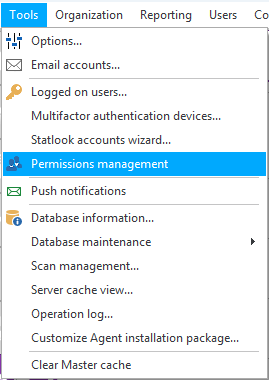
- In Statlook Master, go to Tools -> Permissions Management.
- Select the user who performs roles under the GDPR (if the user is not on the list, select Operations -> Add user), edit their individual permissions, and select the appropriate permissions in the GDPR general rights section.
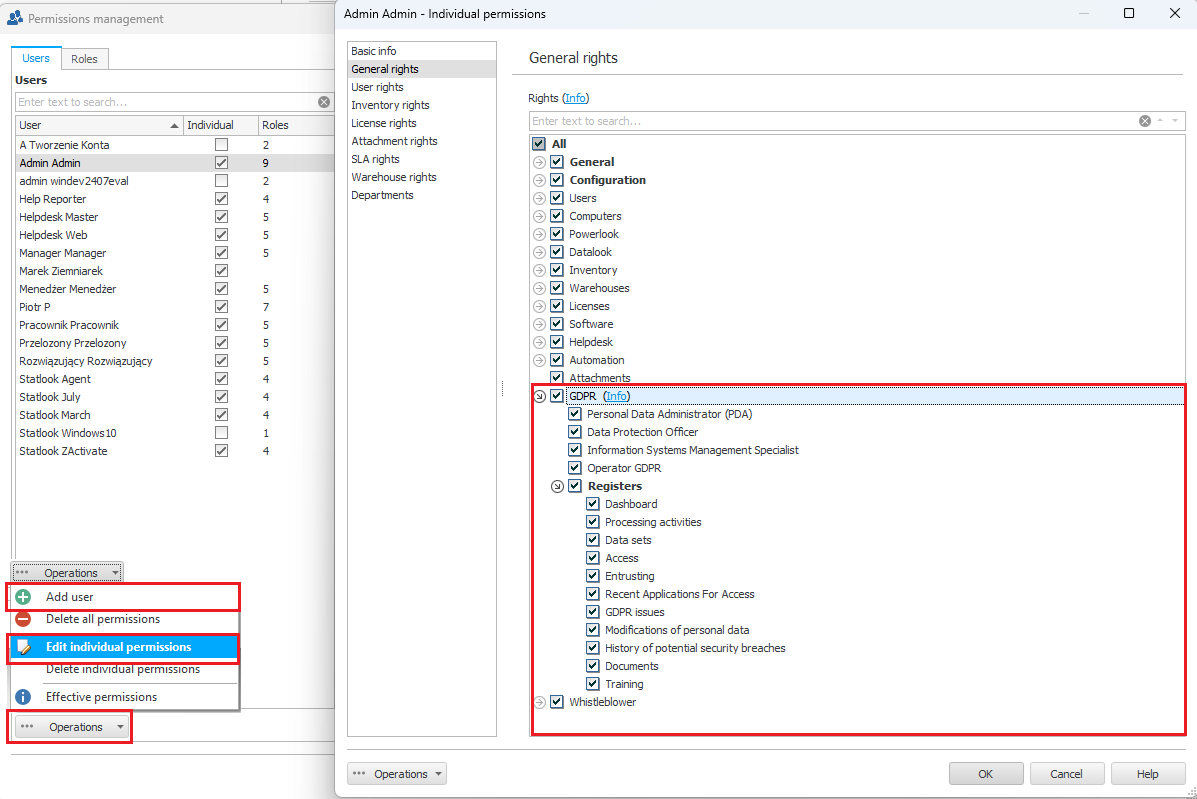
The GDPR Operator permission is a collection of permissions that allows the user to submit access requests (and manage requests) on behalf of themselves and other employees. Regular users do not have the right to request access themselves.
Define a list of companies that participate in the processing of personal data, fill in information about the representatives of these companies, and record their addresses.
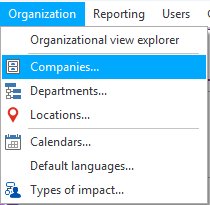
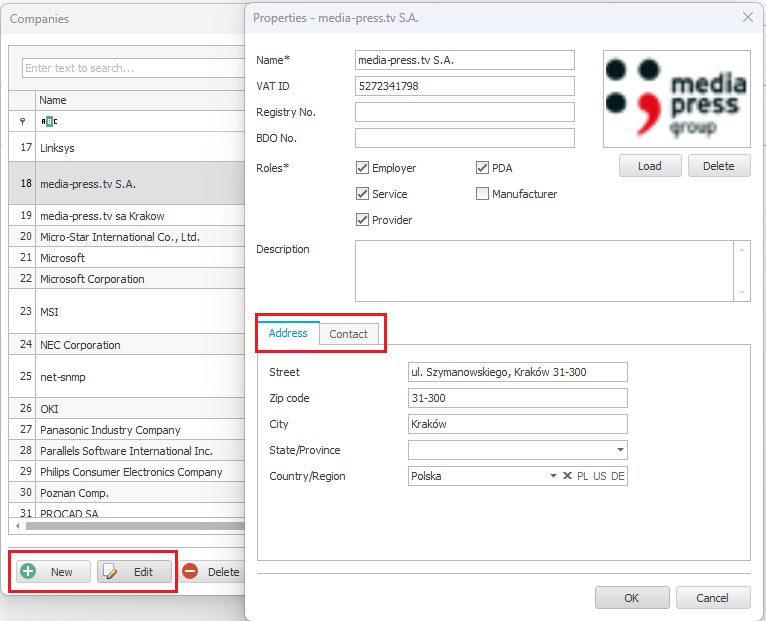
- In the menu, select Organization, then Companies.
- If you have not entered any company, you should do so at this point. If you already have items recorded, you can only edit them to fill in the missing information.
- Mark your company as an PDA, specify who is the PDA representative for your company
- If you will be entrusting personal data to the company you are editing, you should mark that company as a provider.
Zdefiniuj strukturę lokalizacji Twojej firmy i opisz wprowadzone dla poszczególnych pomieszczeń zabezpieczenia
- Go to the Organization -> Locations menu.
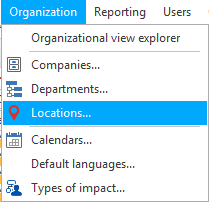
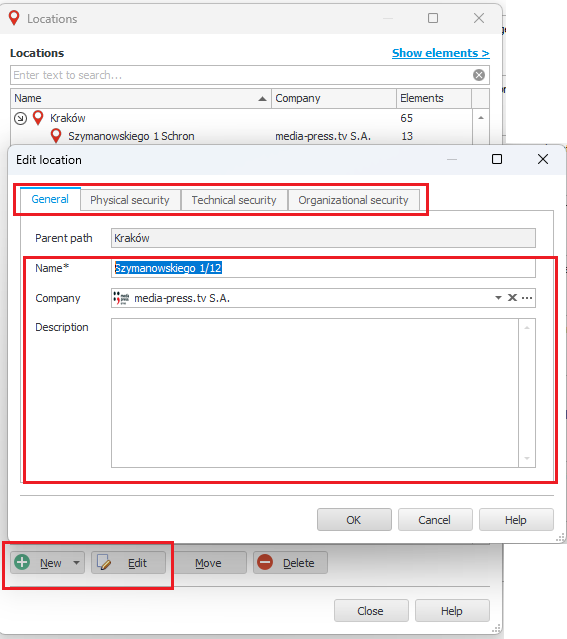
- If you have not created a location structure for your company, you should do so at this point. If you already have locations recorded, you can only edit them to fill in the missing information. Remember to assign locations to the appropriate company.
Complete the list of your company’s employees
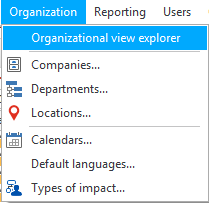
- If you have a directory service, you can synchronize your company’s employees with it. Synchronization is one-way; it will retrieve employee information from AD without making changes in the other direction. To perform synchronization, go to the menu Organization -> Organizational View Explorer.
- If you are in possession of the employee list in form of a text file or a spreadsheet, you may import such a list to a program. It demands only saving the file in CSV format and importing it to a program.
To do this, go to the menu Users -> Import from CSV file and follow the steps in the wizard.
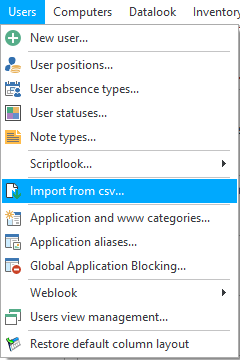 For more detailed instruction on this procedure, see THIS article.
 - If you are unable to perform any of the above operations, you can create employees manually. Go to the Users menu and select New User.
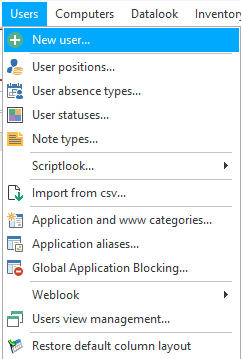
Create lists
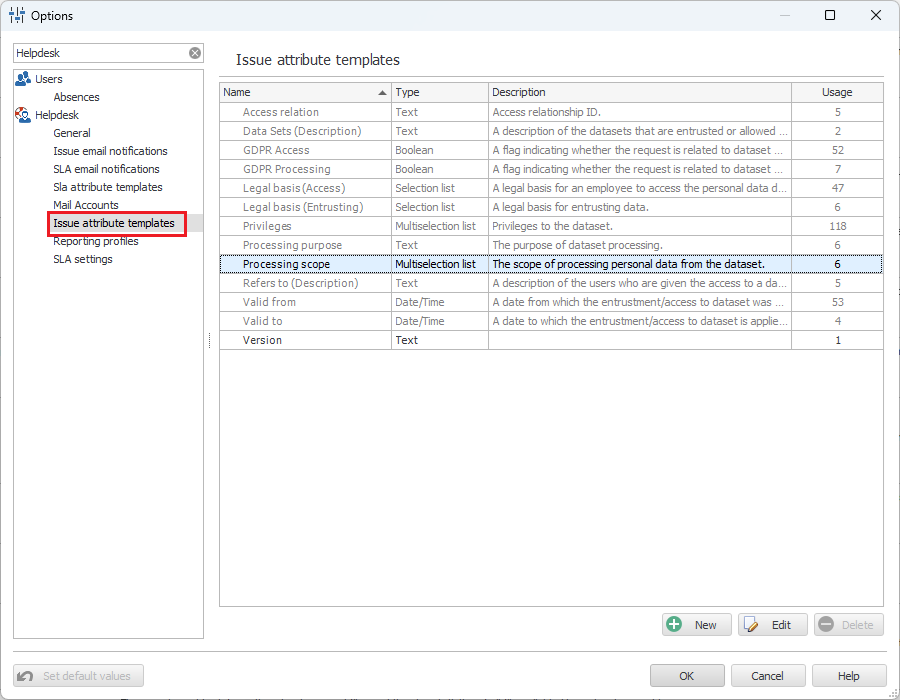
Before you start creating documentation, take a moment to consider what lists you should create or edit. An example of a list that is built into the system but needs to be supplemented in accordance with company requirements is ‘Processing scope’. You can add further items to it as needed.
- Go to Tools menu, choose Options and in Helpdesk tab choose Issue attributes templates.
- Select the list you want to edit. Click Edit, and then use the edit menu in the Items field to open the component editor for that list.
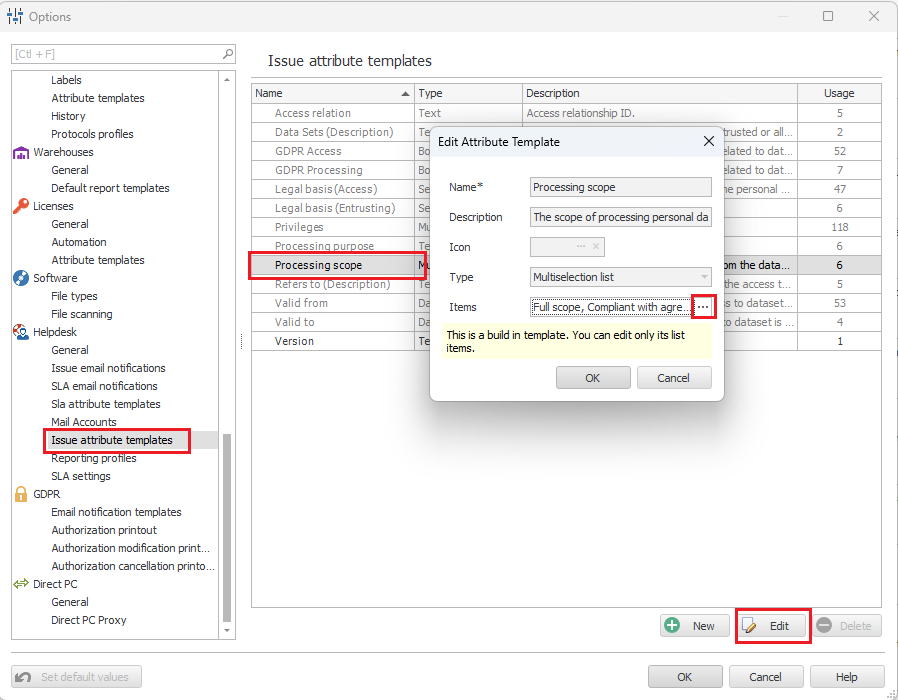
- If you already edited the lists, you may proceed further. Remember – you can return to these settings at any moment in order to add new options which will be available in the system.
Define the systems in which you process data and the sources from which you obtain it.
For correct recording of processing activities (processes), it is necessary to specify in which systems the data is processed and where it comes from. These items can be added in the settings of the browser version of Statlook Web. To do this, go to settings, and then in the GDPR section, select ‘System or software name’ or ‘Data source’. Selecting one of the options will open a page where you can add new values.
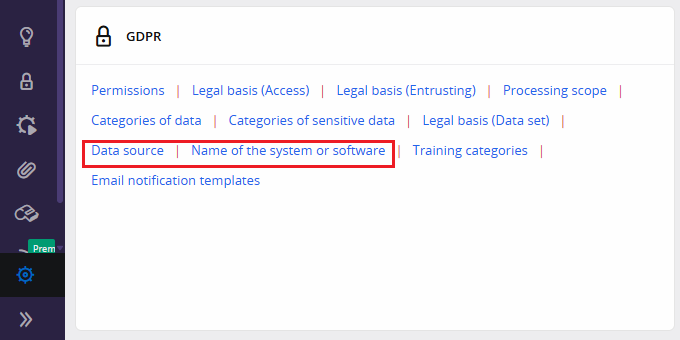
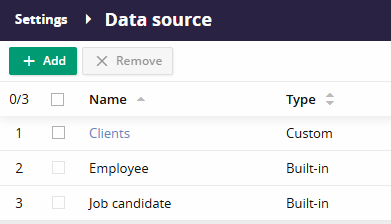
Once you have completed both lists, you can proceed to inventory your collections and activities.
Inventory your company’s data sets
- Data sets can be entered into the system from Statlook Web.
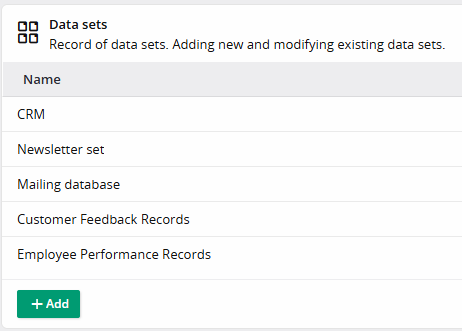
- In Statlook Web, expand the GDPR tab and then select Data sets. If you have not created any sets, you can do so using the Add button.
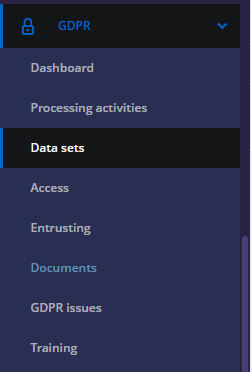
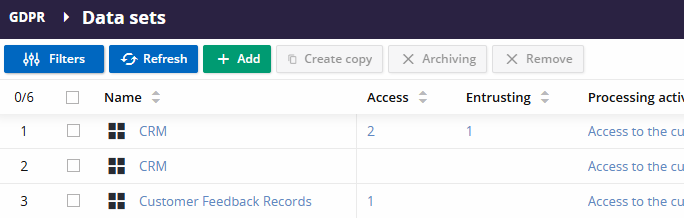
- You can also add a new dataset from the Summary report. To add a new dataset, select the Add button in the appropriate section of the Summary report. The Go to register button takes you to the report corresponding to the selected section.
Create processing activities
The GDPR requires that you specify how personal data will be processed. Similar to data sets, processing activities can be entered from the Statlook Web.
- From the available reports in the GDPR module, select Processing activities.
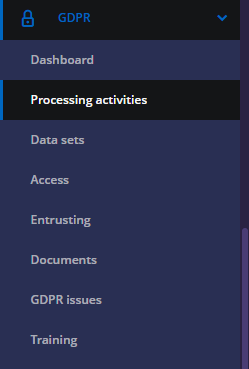
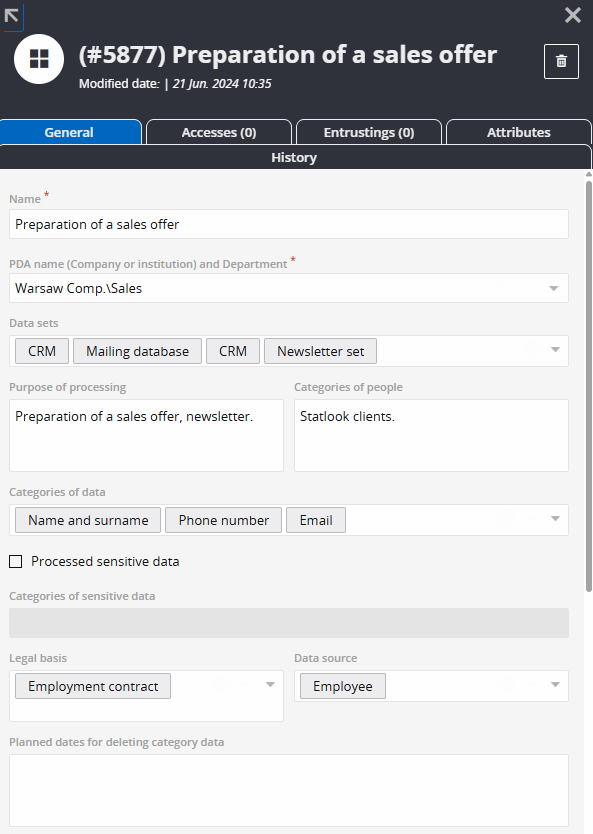
- In the Processing Activities report, select the Add button.
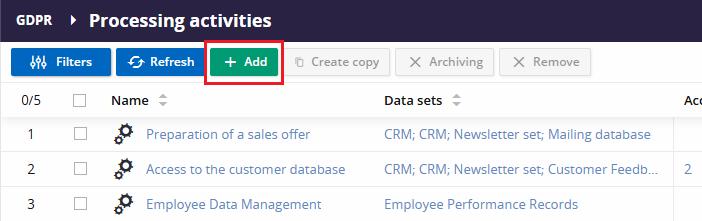
- or in the Dashboard report, in the Processing Activities section, select the Add button
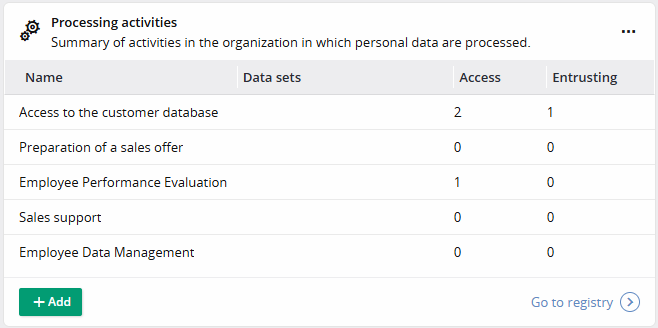
- If you have not previously added the data source or the system in which it is processed, you should do so now.
- Once all the information has been entered, save it and start recording access to the collections.
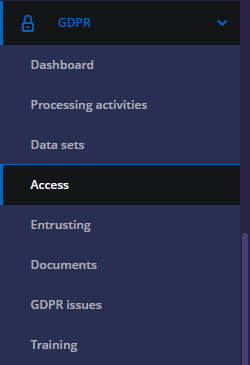
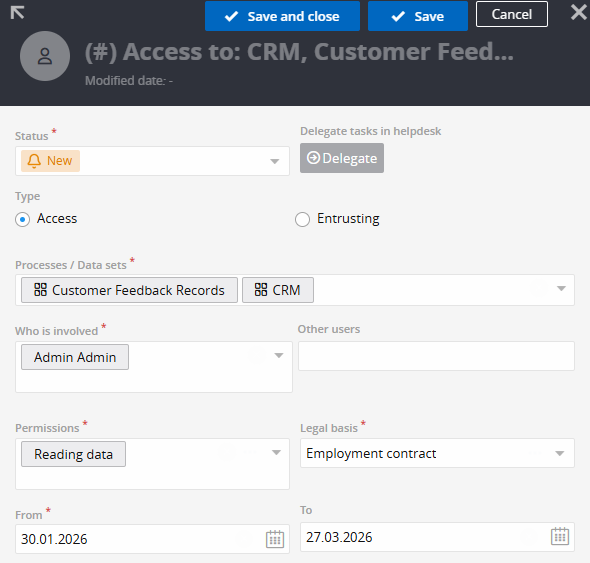
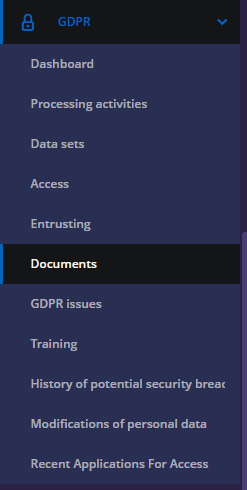
- To grant permissions, expand the list of available reports in the GDPR module in Statlook Web, and then select Access.
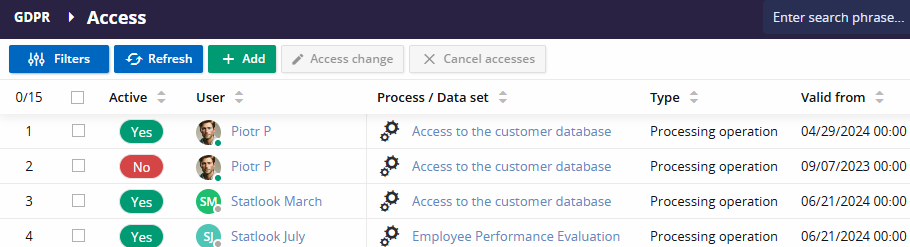
- From the Accesses report, select the Add button.
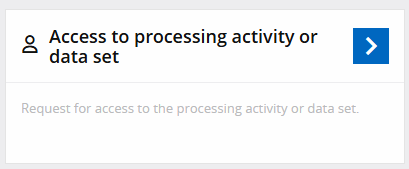
- To grant permissions from the Dashboard report, use the Access to activity or data sets tile, select the Access option in the form, and then fill in the remaining details.
Determine who processes/whom your data were entrusted to
- If the data in your collections is processed by third parties, you must add information about entrustments. To create an entrustment, go to the Entrustments report, then select Add and fill in the details.
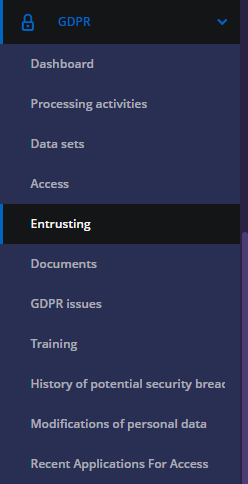
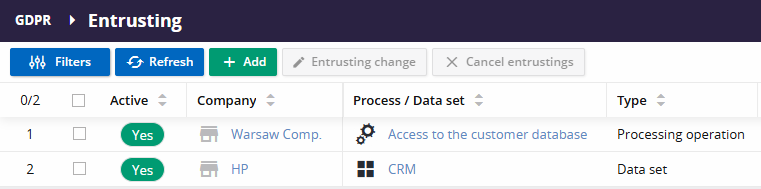
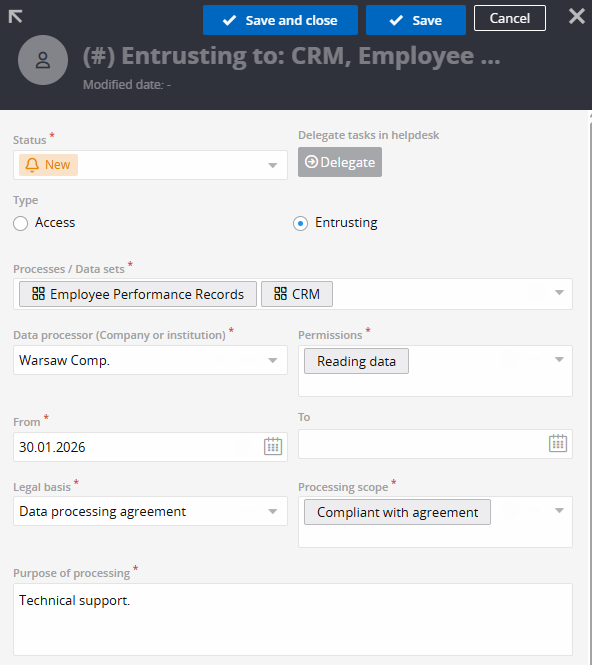
- To create an assignment from the Dashboard report, use the Access to activity or data set tile again. This time, select the Assignment option in the form and fill in the remaining details:
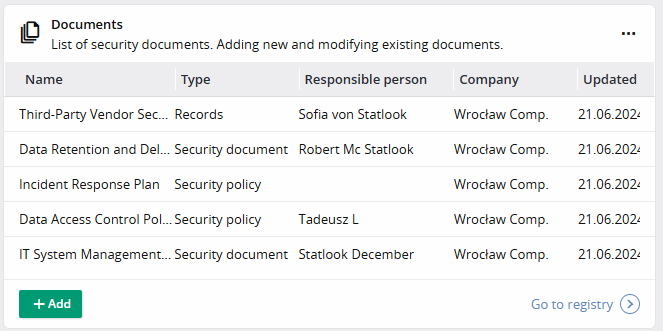
Add security documents to the system (e.g., your company’s security policy, IT systems management manual)
- To enter existing security-related documents into the system, use the Documents report available in the GDPR module or use the Documents tile in the Dashboard report. The list of recently added documents will be visible on the widget on the main screen of the GDPR module.
Schedule personal data protection training for your employees
The largest number of data breaches occur after a successful social engineering attack. The attacker manipulates an unsuspecting employee to obtain the relevant data or persuade them to perform a specific operation. The most important element in protecting against such attacks, whether it be a fabricated email or a fake phone call, is regular training.
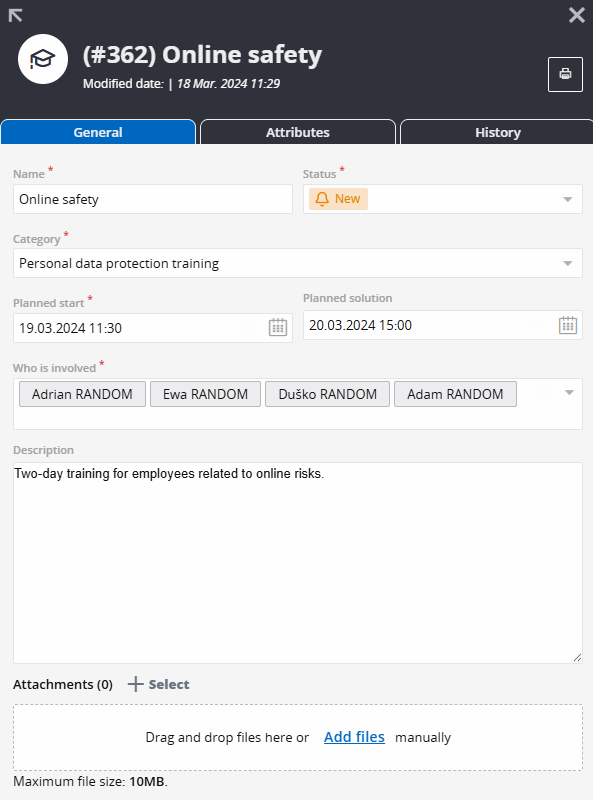
- To schedule training in the Statlook system, go to the Training report in the GDPR module and select the Add button or use the Scheduling security training tile. The form will allow you to schedule training and indicate the people it applies to.